
Key Points
Ronin Waypoint will be sunset. Move your assets before the final migration deadline on October 16. Assets left in a Waypoint wallet may become inaccessible.
Used a keyless wallet or social login on Ronin? Check your account. Waypoint wallets are also called Social Login, Keyless, or MPC wallets.
Choose your destination: migrate to Ronin Stash to keep using email or social login, or transfer your assets to a Ronin Wallet secured by a seed phrase.
Lunacians, if you still hold assets in a Ronin Waypoint wallet, now is the time to move them.
The migration requires action from YOU. Your assets stay in your Waypoint wallet until you transfer them. Choose one of the options below and complete the move before October 16.
Who Needs to Take Action?
Check your account if you’ve used Waypoint, a keyless or MPC wallet, or social login on Ronin.
Open your Waypoint wallet dashboard and look for a wallet labeled Social Login Wallet or Keyless. Check that wallet for any remaining assets, even if you now use another wallet.
If you exclusively use a seed phrase wallet, this migration leaves that wallet unaffected.
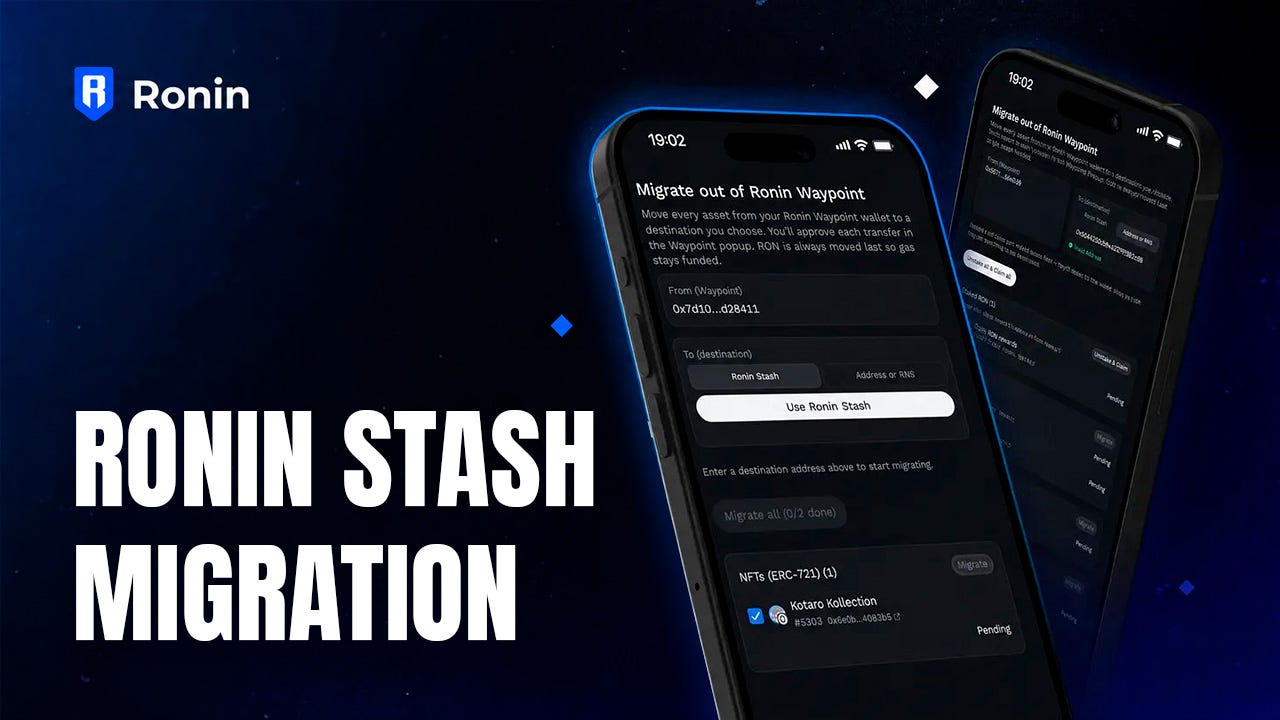
Option 1: Migrate to Ronin Stash
Choose Ronin Stash if you want to continue using email or social login.
Open the official migration page.
Sign in with the Ronin Waypoint account you want to migrate.
Select Ronin Stash as your destination.
Select the assets you want to transfer.
Click Migrate and complete the prompts.
The migration creates a new Ronin Stash address for your selected assets.
Once the transfer is complete, sign out of the Ronin Wallet website and sign back in using Ronin Stash to access them.
Option 2: Transfer to a Seed Phrase Wallet
Choose this option if you want to move your assets to a Ronin Wallet secured by your own seed phrase.
Open the Ronin transfer page.
Sign in with the Waypoint account holding your assets.
Select the asset you want to transfer.
Enter your destination Ronin Wallet address and check it carefully.
Send the assets and confirm they arrive in your destination wallet.
Repeat for your remaining assets. Use Batch NFT Transfer to move multiple NFTs.
What About bAXS and Badges?
bAXS and badges require a separate migration process.
Open the Migration Page in App.axie.
Sign in with the Waypoint account that holds your assets.
Link your seedphrase wallet to your Axie account. Guide: https://support.roninchain.com/hc/en-us/articles/14035915575707
If your seedphrase wallet is already linked, step 3 will be skipped.
Review your badges and bAXS, then check “I understand this happens once.”
Approve bAXS, if you have any.
Sign the transaction.
Some badges are attached to assets you own. These badges will move with the asset when you transfer it. You can transfer those assets through your wallet or the Ronin migration portal.
Note: You can only complete this migration once. After you sign the transaction, your badges will be permanently moved to your linked seedphrase wallet.
Check Your Account Today
Before you finish, confirm that your transferred assets appear in your destination wallet. Then check your Waypoint wallet for anything left behind.
Complete your migration before October 16.
Share this announcement with any Lunacian who may still have assets in Waypoint. A reminder today could help them keep access to their axies.